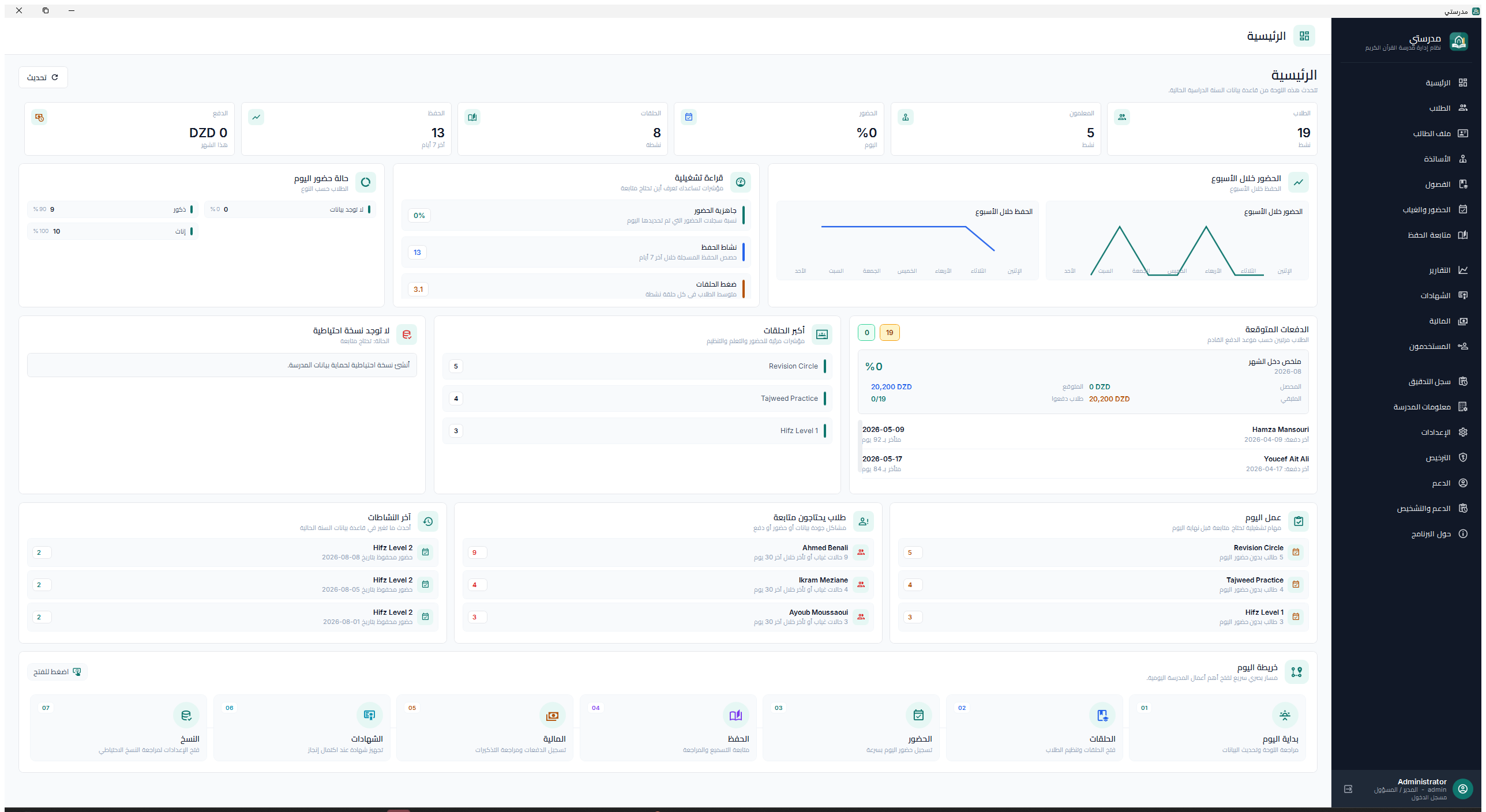
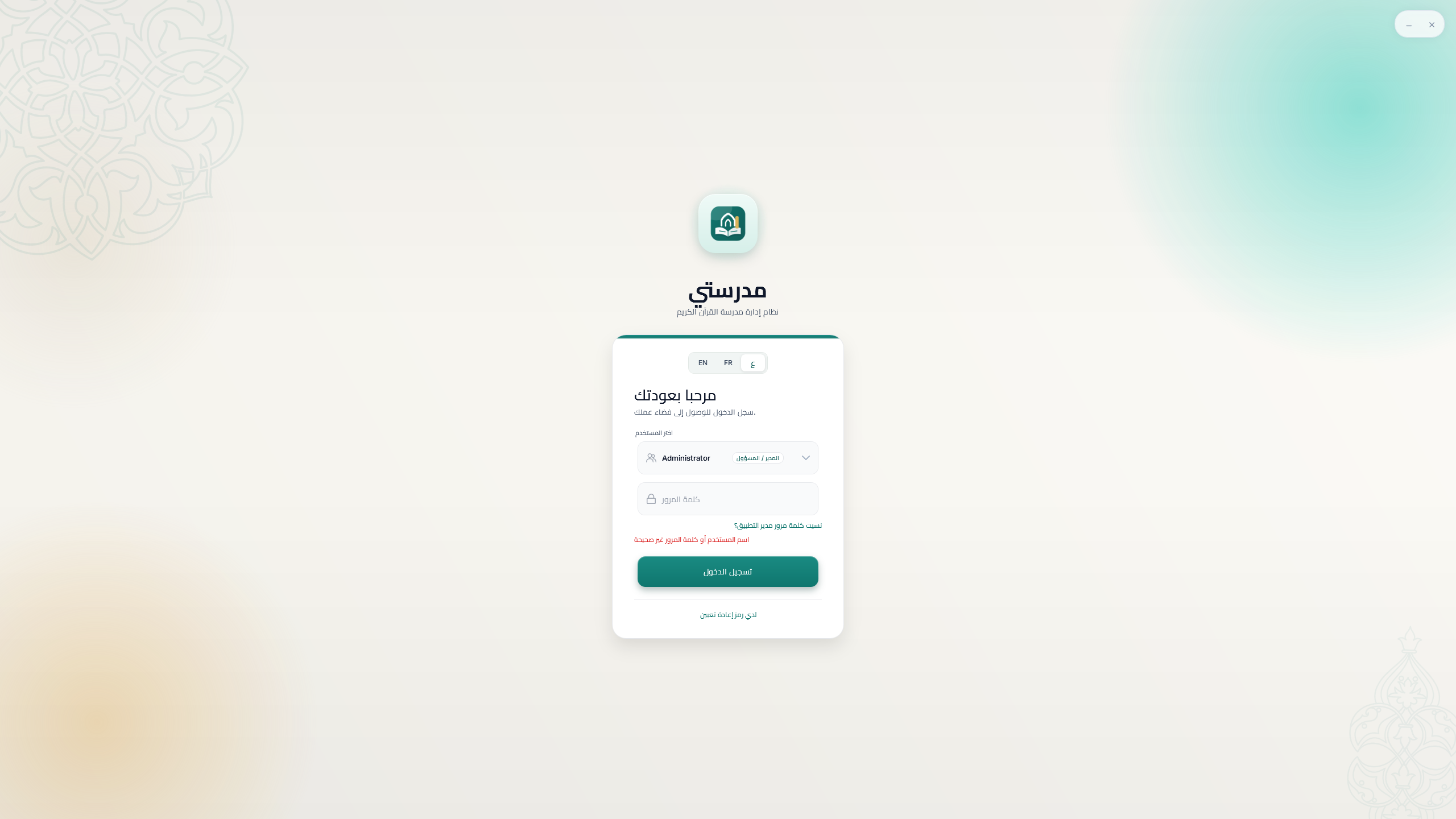
Prepare Windows and install only the official Fikrova package.
Open in MadrasatiWindows > Downloads > Madrasati Setup
Procedure
01
Use Windows 10 or 11 (64-bit), keep at least 500 MB free, and connect to the internet for the simplest activation.
02
Download the installer only from fikrova.com. Do not accept copies sent by unknown accounts or unofficial websites.
03
Close any running Madrasati window, open the setup file, select the installer language, and accept the license terms.
04
Keep the required application component selected. Add the optional desktop shortcut if useful, then choose Install.
05
When setup completes, choose Open Madrasati. Updates preserve the local database; uninstalling also leaves customer data in Local AppData.
Good practice
Before an update or computer repair, create a fresh local backup and copy it to another disk.
02
Account, activation, and trial
Connect the verified customer account to the correct machine and license.
Open in MadrasatiStartup > Create account or Sign in
Procedure
01
If the computer is online, choose Create account for a new customer or Sign in for an existing Fikrova account.
02
For signup, enter the real name, country, phone, email, and a strong password. Verify the email with the six-digit verification code.
03
A new eligible account receives the full three-day trial on this machine. Existing accounts receive their available paid or trial license.
04
If the computer is offline, use the offline activation card, provide the machine request to Fikrova, then import the signed license file or activation key.
05
After renewal or reactivation, open License and choose Refresh status. Full editing returns as soon as the server confirms the active term.
Good practice
Never share a password or verification code. Support may ask for the account email, product code, license key, and machine code, but never the password.
03
Complete the first-run setup
Create a reliable school identity and the first administrator account.
Open in MadrasatiFirst launch > Setup wizard
Procedure
01
Select Arabic, French, or English. You can change the interface language later from Settings.
02
Enter the official school name in Arabic and French, address, city, country, phone, email, and director name.
03
Choose the academic year and the default Quran reading used by the institution.
04
Create the administrator username and a strong password, then enter the password a second time to confirm it.
05
Review the summary before finishing. These values appear in reports, receipts, certificates, and support identity.
Good practice
Import a clear square school logo. Madrasati normalizes it for reports and receipts.
04
Users, roles, and academic years
Separate staff responsibilities and keep each school year fast and independent.
Open in MadrasatiUsers / Settings > Academic year
Procedure
01
Open Users and create one account per staff member. Do not share the administrator password.
02
Assign Administrator, Teacher, Reception, or Viewer. Link a teacher account to its teacher profile so class data is correctly scoped.
03
Deactivate accounts immediately when a staff member leaves; keep the audit history instead of reusing usernames.
04
At the new school year, create the suggested year from Settings. The new database starts empty while essential settings and users can be carried over.
05
Switching academic year requires restarting Madrasati so the correct independent database is loaded.
Good practice
Use the Audit log to review sensitive actions by user, date, module, and context.
05
Register and manage students
Create complete records that remain useful for attendance, billing, reports, and family communication.
Open in MadrasatiStudents > Add student / Student profile
Procedure
01
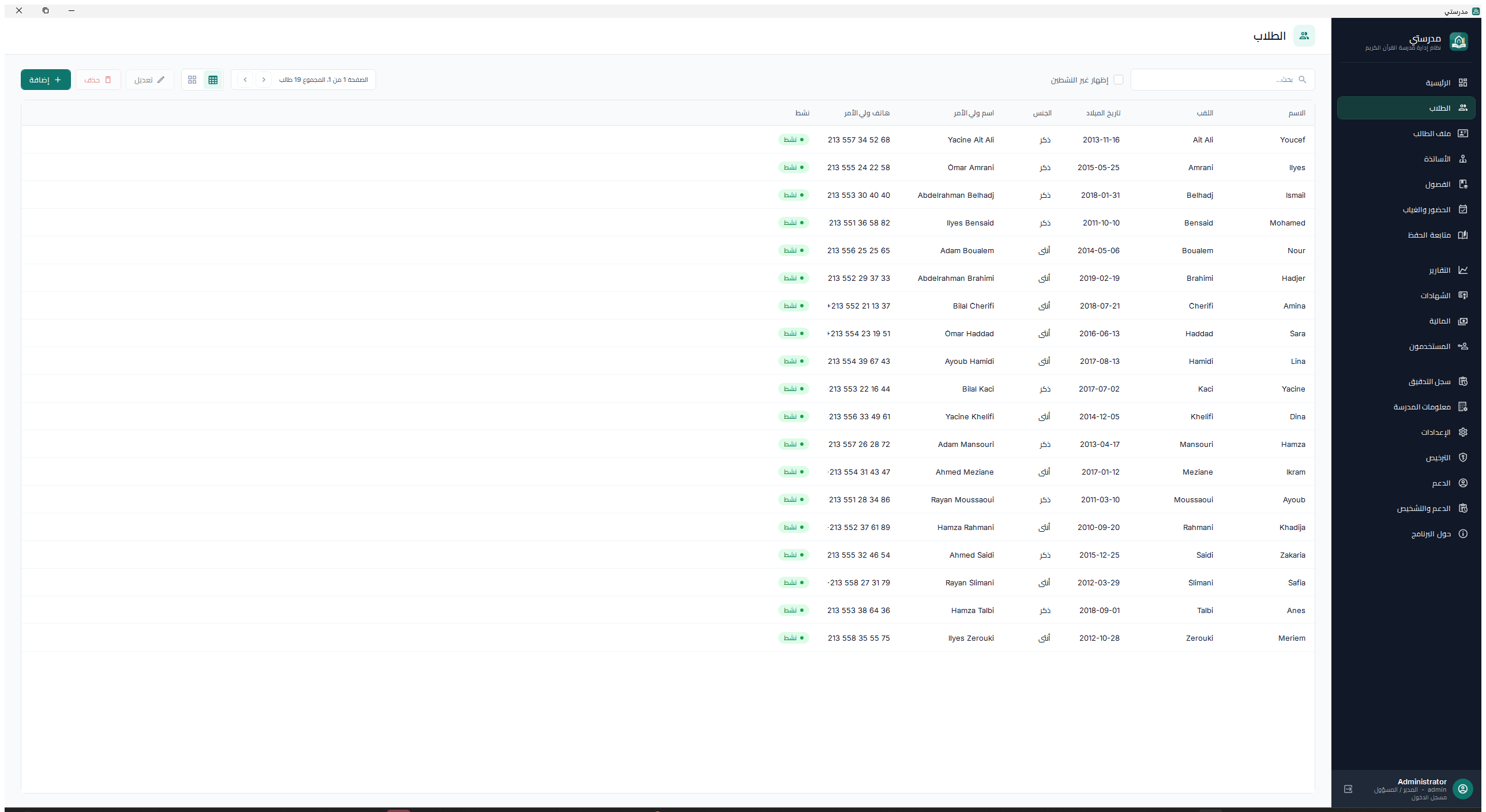
Choose Add student and enter the full name, birth information, gender, phone, address, enrollment date, and active status.
02
Add guardian name, relationship, and contact information. Use notes only for operational information that staff genuinely need.
03
Save the record, then enroll the student in one or more classes from the profile or class management area.
04
Use search and filters instead of creating duplicates. When two students share a name, confirm the guardian, phone, birth date, and internal identifier.
05
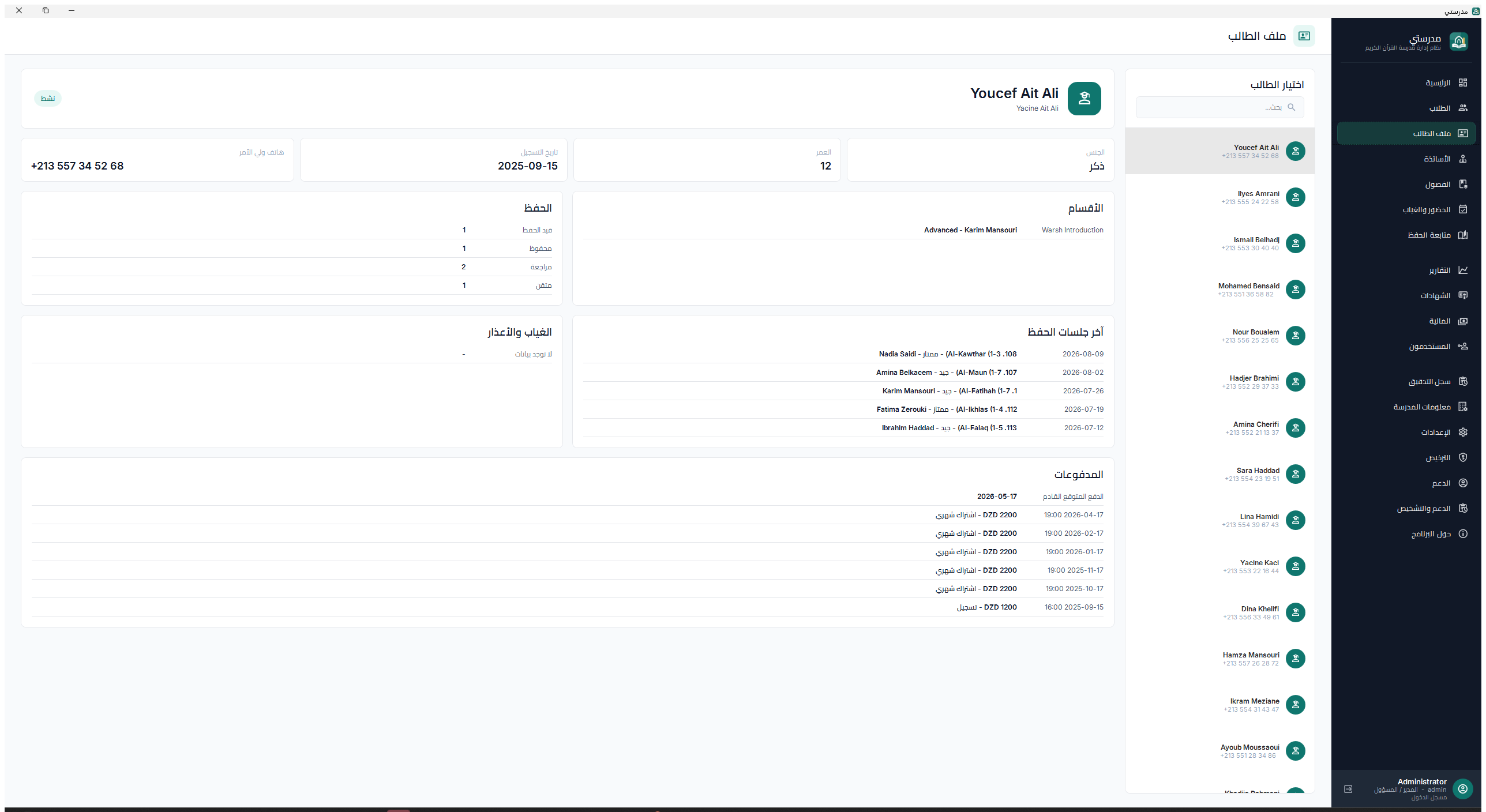
Open Student profile for one consolidated history of classes, attendance issues, Quran progress, and payments.
Good practice
Deactivate a student who leaves instead of deleting historical records needed for receipts and reports.
06
Teachers, classes, and enrollment
Build the academic structure before recording attendance or fees.
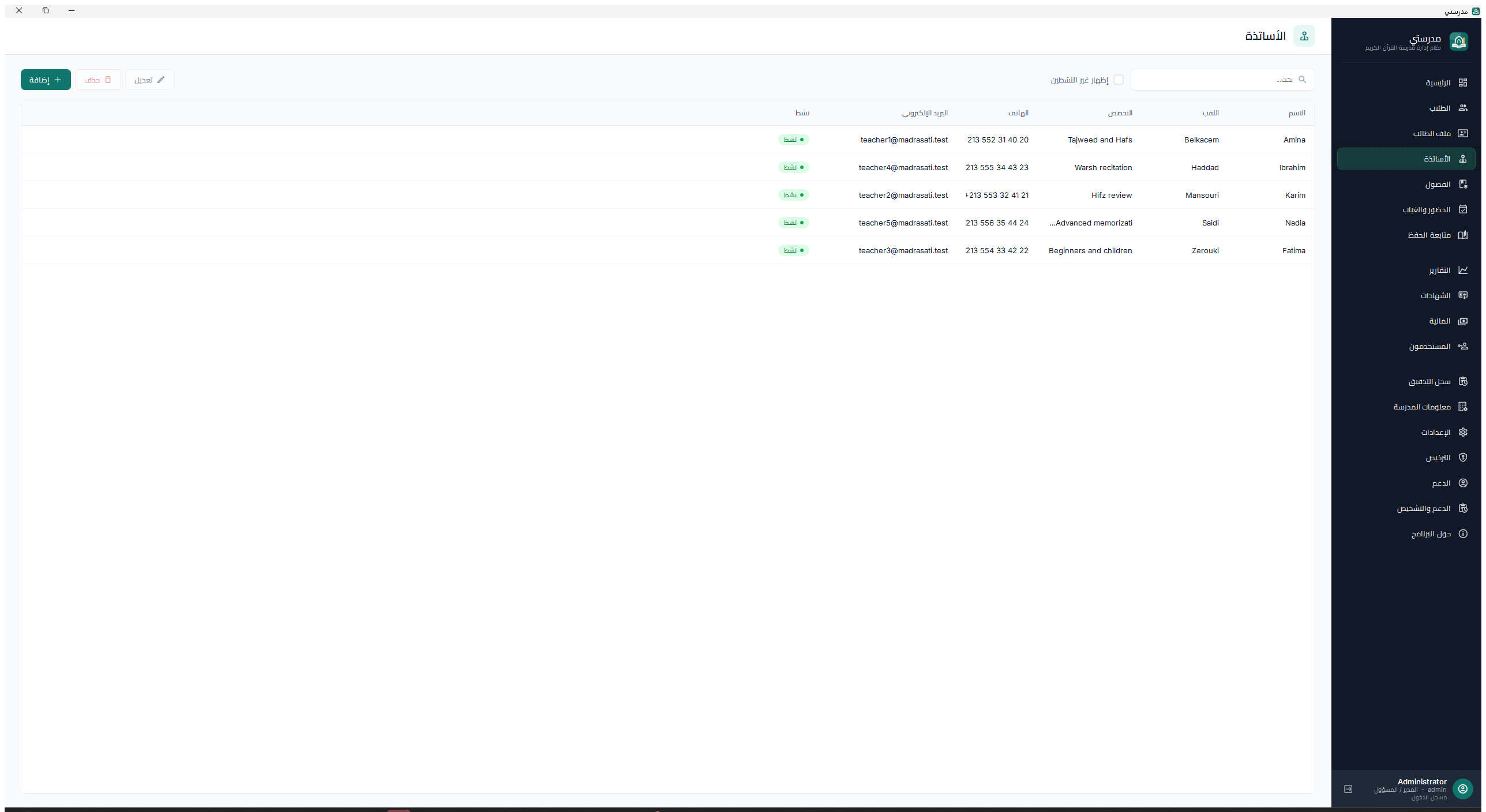
Open in MadrasatiTeachers > Add teacher; Classes > Add class
Procedure
01
Add each teacher with name, specialization, phone, email, and active status.
02
Create a class with a clear Arabic name, level, schedule, teacher, capacity, and optional class fee.
03
Enroll students from the class or student profile. A student may belong to multiple active classes when required.
04
Check the class roster before the first session. Correct teacher and enrollment links drive attendance, reports, and billing.
05
Deactivate a finished class only after reviewing remaining dues and exporting any required reports.
Good practice
Use consistent class names such as level, group, and schedule so lists remain easy to scan.
07
Record attendance
Capture the status of an entire class quickly without losing individual context.
Open in MadrasatiAttendance > Select class and date
Procedure
01
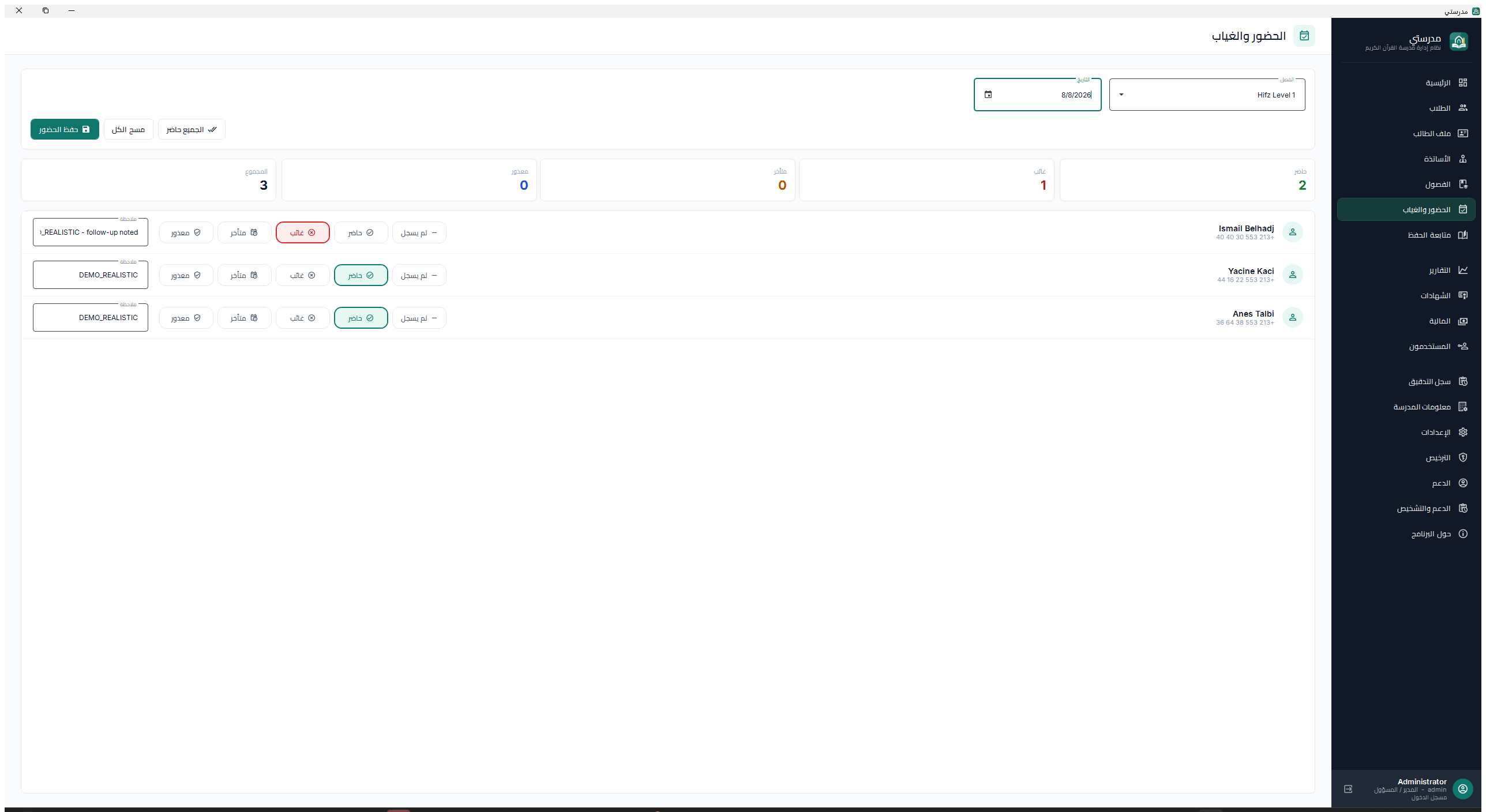
Select the class and session date, then load its active students.
02
Mark each student Present, Absent, Late, or Excused. Add a short note when an absence or delay needs context.
03
Use Mark all present as a starting point for a normal session, then adjust exceptions.
04
Status changes are saved safely; the Save button also provides an explicit final confirmation.
05
Review the summary counts before leaving and generate an attendance report for repeated absences or administrative follow-up.
Good practice
Record attendance on the same day. Delayed entry makes notes less reliable and weakens operational reports.
08
Track Quran memorization
Record memorization, revision, teacher assessment, Qira'a, and Tajweed observations.
Open in MadrasatiMemorization > Add session
Procedure
01
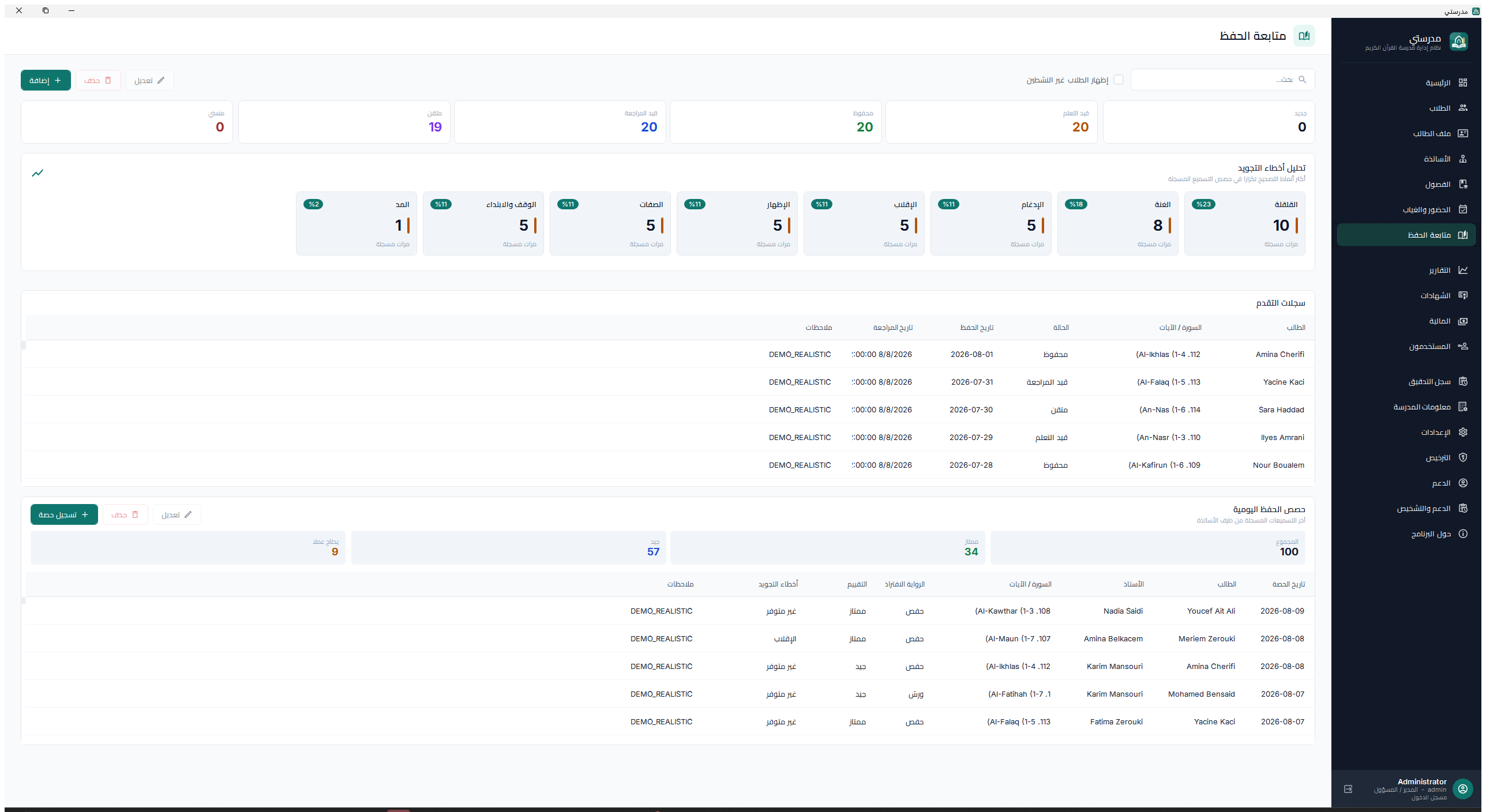
Choose the student, teacher, date, and the institution's Qira'a.
02
Select the Surah using the localized Arabic, French, or English name, then enter the ayah range.
03
Classify the work as new memorization or revision and record the status and completion date.
04
Grade the session and select any Tajweed error types observed. Add a concise teacher note when helpful.
05
Use the analysis and recent-session areas to identify repeated errors and students needing revision.
Good practice
Keep the default Qira'a correct in Settings; change it per session only when the student genuinely follows another reading.
09
Configure fees and record payments
Use fee plans to produce trustworthy expected, paid, and remaining amounts.
Open in MadrasatiFees & billing; Finance > Add payment
Procedure
01
Keep the built-in Custom plan for exceptional payments. It is always available and cannot be modified or deleted.
02
Add a named fee plan, choose its amount and billing period, then save it before assigning it to classes.
03
Optionally set a class price so Madrasati can detect the student's applicable class plans automatically.
04
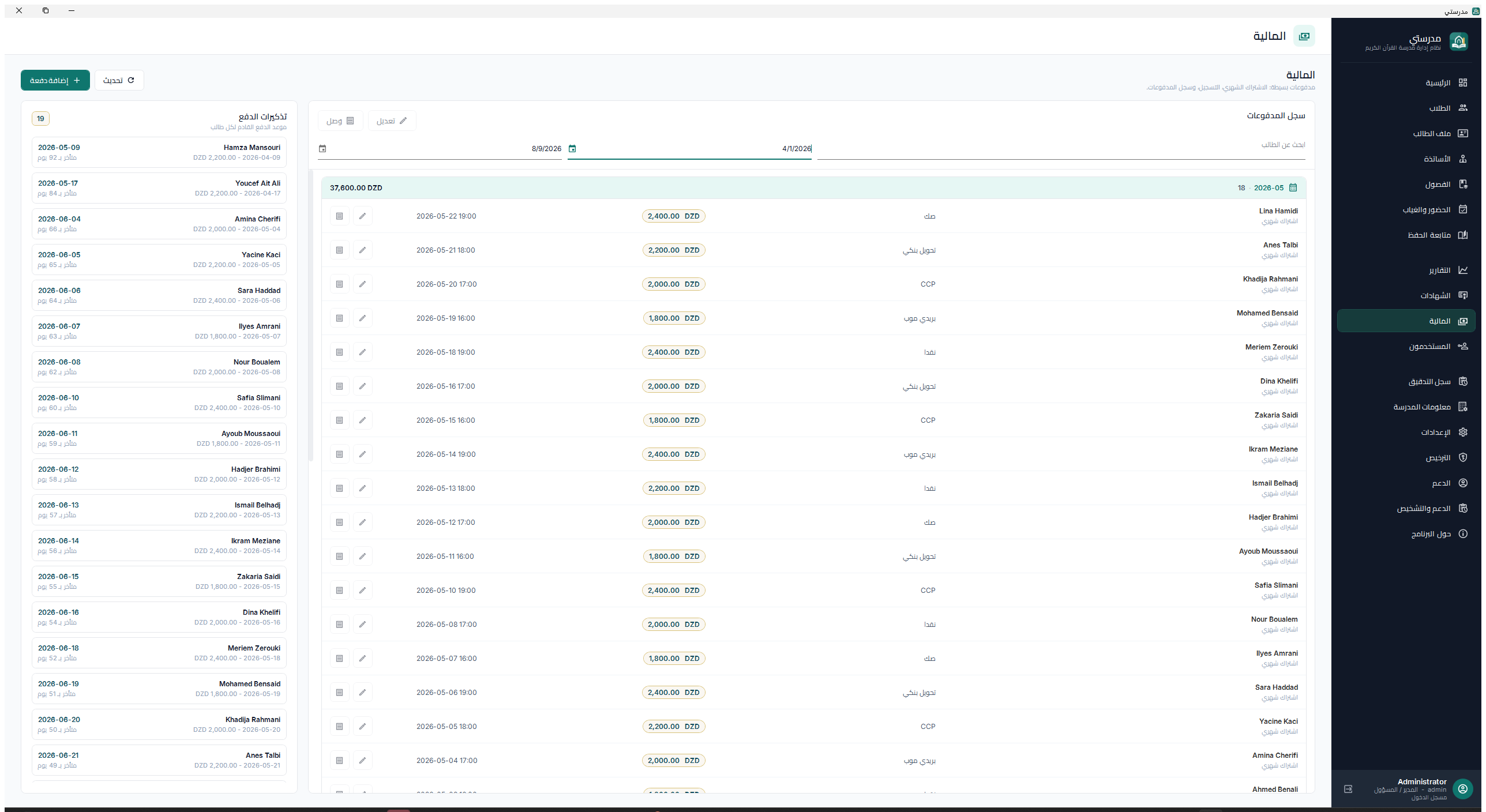
In Finance, choose Add payment, select the student and plan, enter amount, date, method, reference, and notes, then save.
05
A payment can still be entered for a student without class enrollment by using the Custom plan.
06
Generate the receipt after saving, then compare expected, paid, and to collect totals. Edit or delete only after verifying the audit trail.
Good practice
Use the payment reference from CCP, BaridiMob, transfer, or receipt whenever available; it makes later reconciliation easier.
10
Reports, receipts, and certificates
Turn operational records into professional documents for families and administration.
Open in MadrasatiReports / Certificates / Finance > Receipt
Procedure
01
Confirm School info and the logo before generating official documents.
02
For attendance reports, choose the class and date range, preview the result, then export PDF.
03
For a student progress report, select the correct student identity and review classes, attendance, memorization, and teacher context.
04
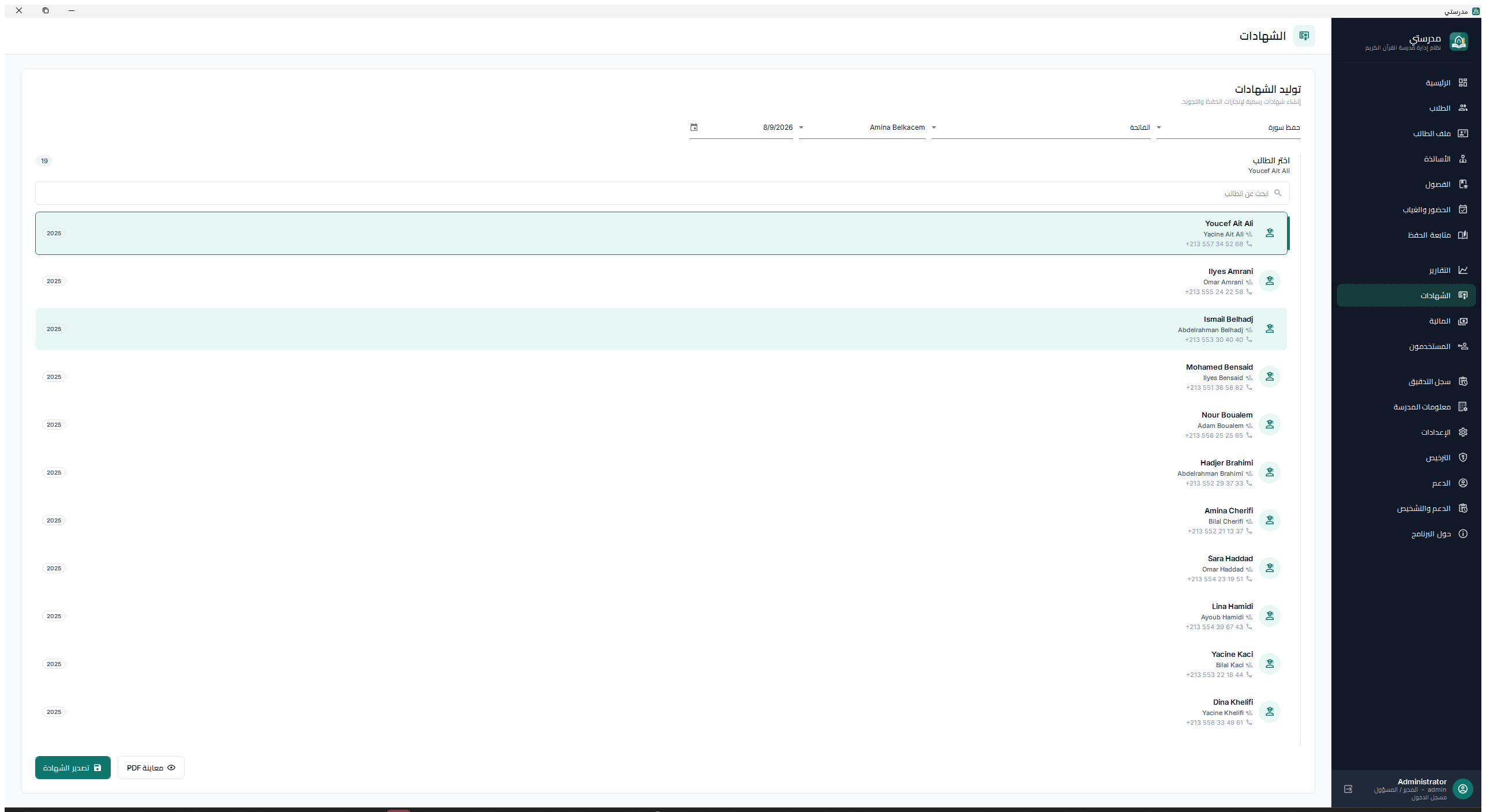
In Certificates, select the student, certificate type, achievement, teacher, and dates, then preview before export.
05
Receipts are generated from saved payment records so the displayed amount and reference match the finance register.
06
Save the PDF with a clear filename containing document type, student, and date, then share it through the institution's approved channel.
Good practice
Always preview. A correct database record can still produce an unsuitable document if the selected language, date range, or identity is wrong.
11
Back up and restore data
Protect each academic-year database locally and optionally in encrypted cloud storage.
Open in MadrasatiSettings > Backup
Procedure
01
Choose a backup folder outside the application installation directory, ideally on another disk or trusted removable drive.
02
Choose Create backup now before major imports, year changes, updates, repairs, or bulk edits.
03
Open the backup folder and copy important files to a second physical location. A backup on the same failing disk is not sufficient.
04
To restore, select a known backup and confirm. Madrasati first creates a safety backup, then requires a restart.
05
If paid cloud backup is enabled, use Back up now or the daily automatic backup. Files are encrypted on the computer before upload.
06
Test a restore periodically on a controlled machine or with Fikrova support. A backup is only useful when it can be restored.
Good practice
Maintain at least three recent copies across two storage locations, with one copy away from the main computer.
12
License status and software updates
Understand trial, paid, expired, suspended, view-only, and update states.
Open in MadrasatiLicense / About > Software updates
Procedure
01
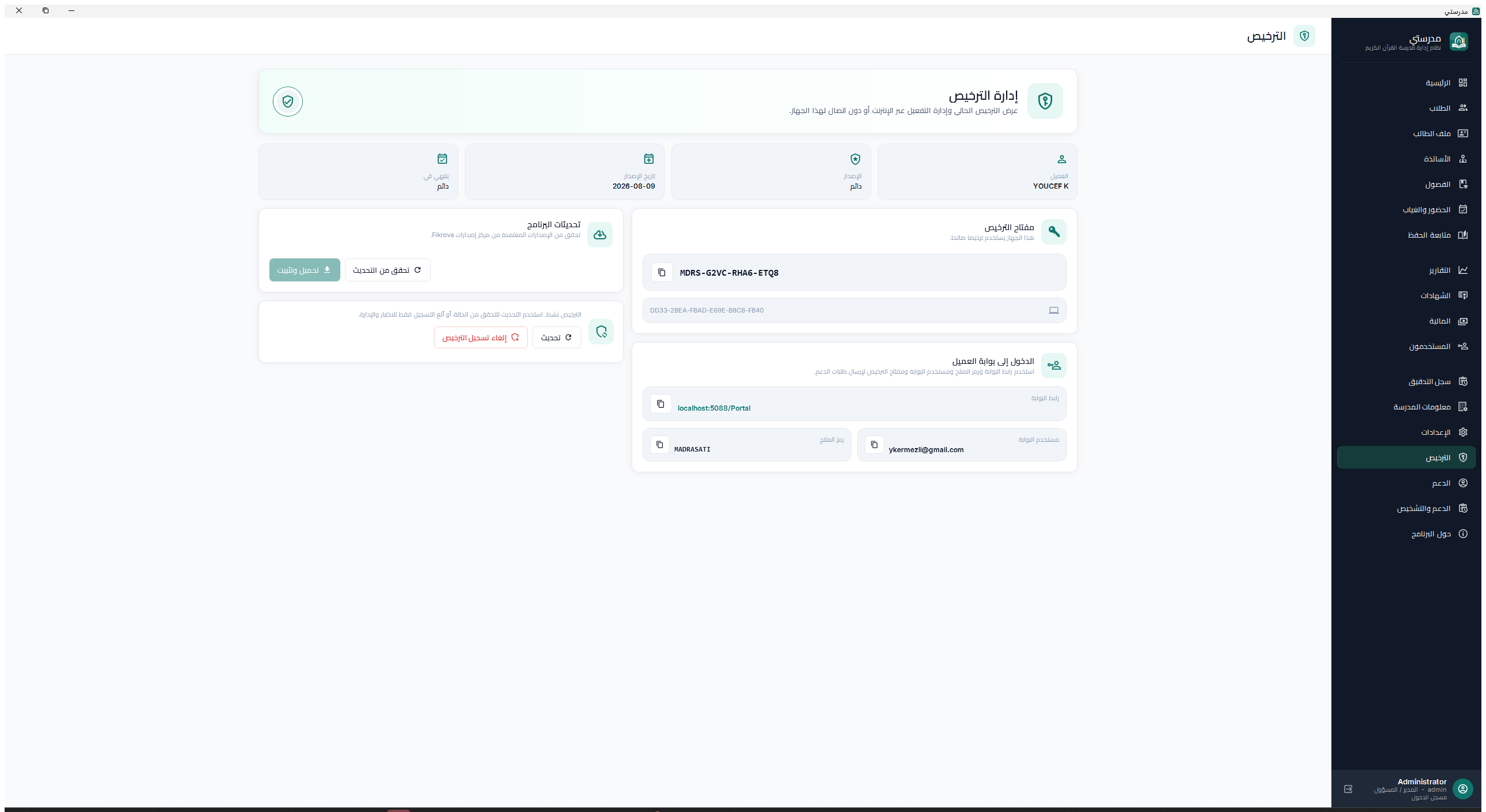
Open License to view customer email, license type, issue and expiry dates, portal identity, product code, and current status.
02
Expired or suspended licenses keep existing data visible but block adding, editing, deleting, attendance saves, payments, and settings changes.
03
After payment or admin reactivation, choose Refresh status while online to leave view-only mode.
04
Madrasati checks approved releases. Optional updates show release notes and may be postponed; mandatory updates require installation or exit.
05
During download, keep Madrasati open and connected. The package is verified before the installer starts.
06
If an update fails, do not repeatedly retry. Export a support package and send the version, error, and connection details to Fikrova.
Good practice
Install approved updates after creating a backup and when no other user is entering data.
13
Get support efficiently
Send the right identity and diagnostic information without exposing passwords.
Open in MadrasatiContact support
Procedure
01
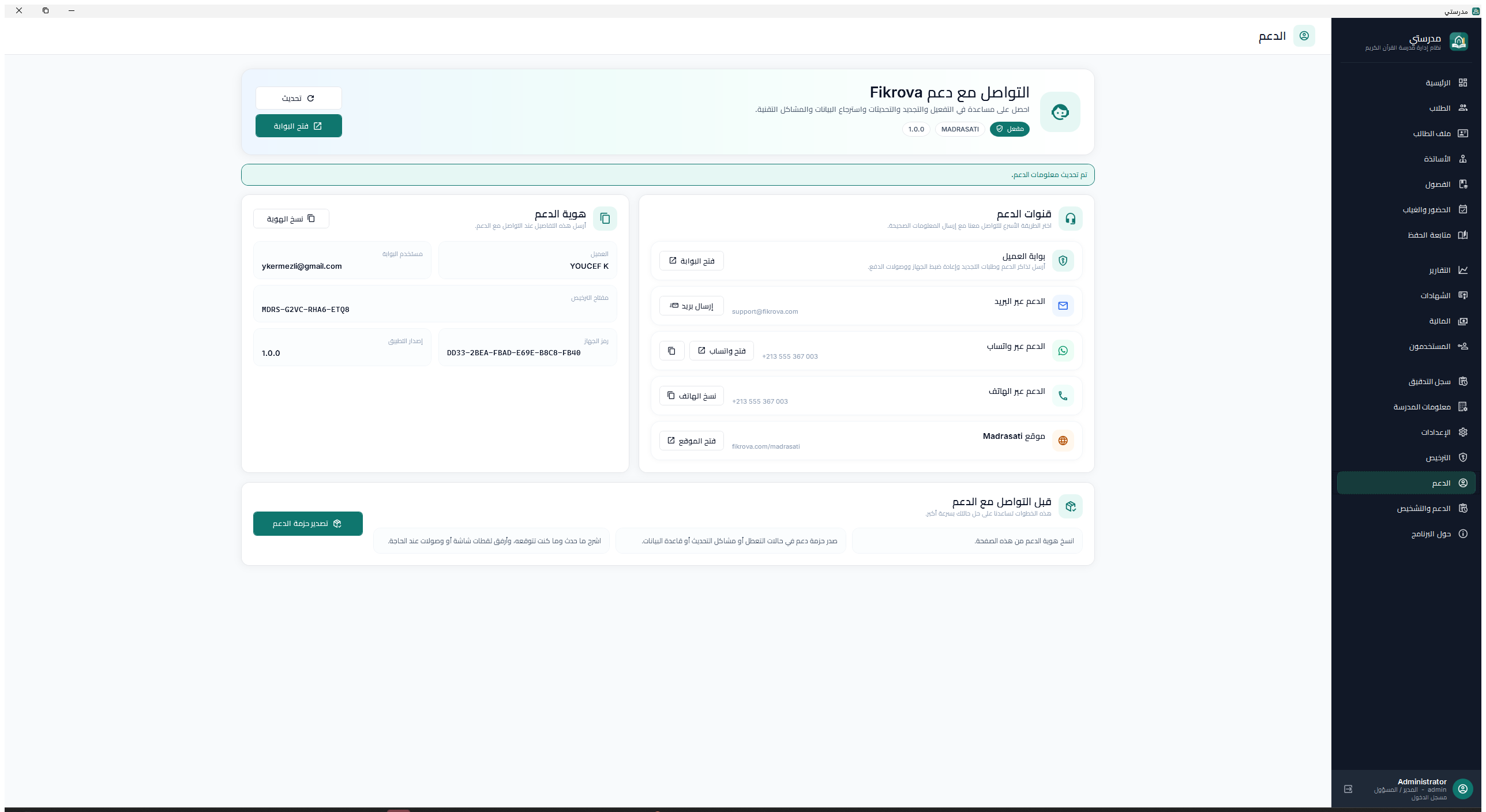
Open Contact support and refresh the displayed channels. Phone and WhatsApp values are managed by Fikrova and may change safely.
02
Choose Copy identity to include customer, portal user, license key, product code, machine code, and app version.
03
For crashes, updates, or database problems, export the support package and attach it privately to the ticket or message.
04
Describe what happened, what you expected, the exact time, affected user, and steps that reproduce the issue.
05
Use the customer portal for tickets, renewal, device reset, receipts, offline license files, and request feedback.
06
Online remote support is free under the support policy; requested physical intervention may be billed separately.
Good practice
Never send passwords, verification codes, database backups, or payment receipts in a public post. Use the private official support channel.
02
Choose the correct role
Give each person only the access needed for their work.
Role
Best for
Typical access
Administrator
Owner or school director
All management, settings, users, years, billing, backup
View existing information without changing records
03
Recommended operating rhythm
01
Every day
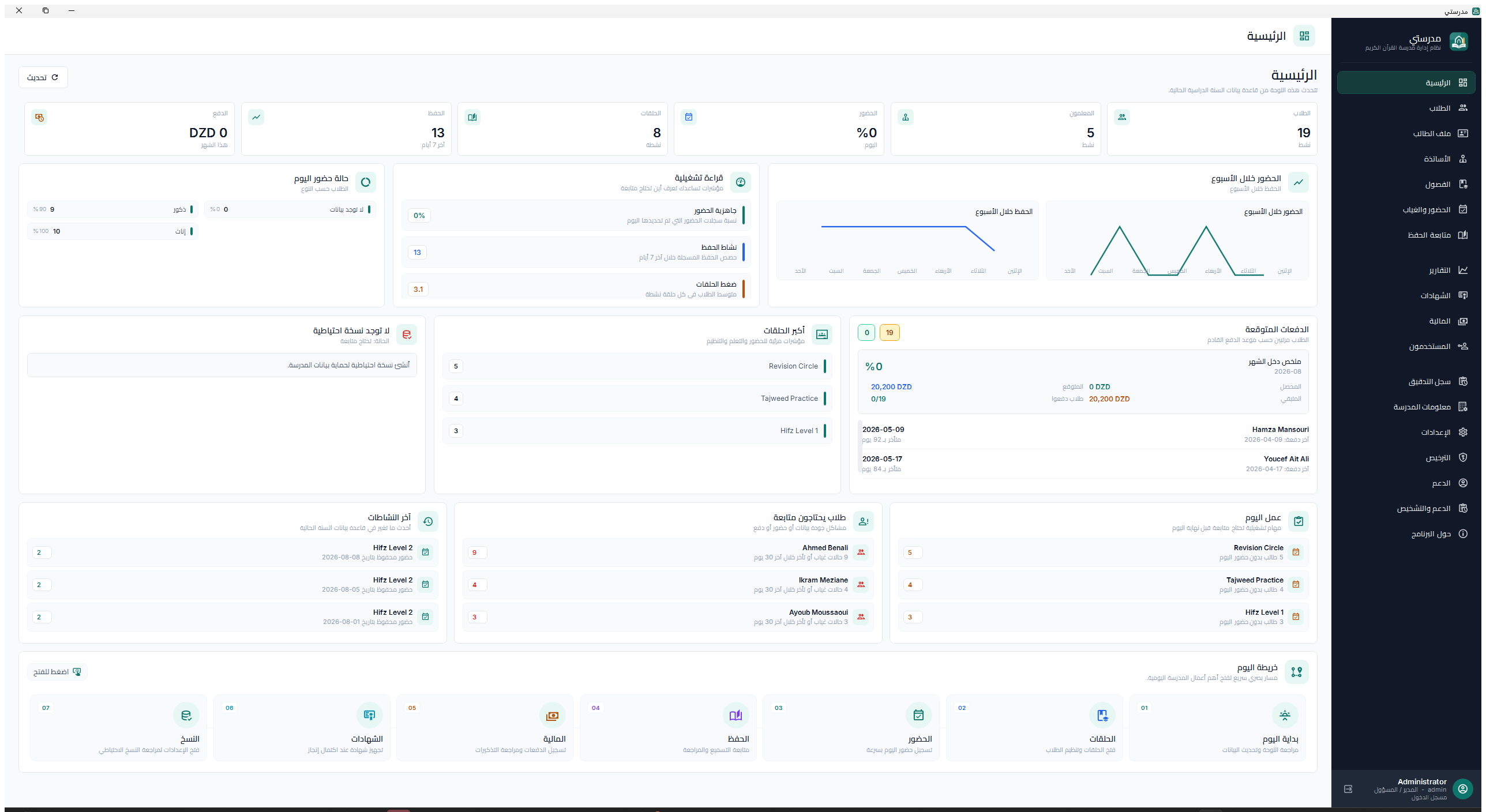
Record attendance; enter payments; save memorization sessions; review dashboard alerts.
02
Every week
Review absences, unpaid dues, student progress, and create a local backup.
03
Every month
Reconcile finance, export reports, test one backup, review users, and install approved updates.
04
Troubleshooting and common questions
Why is Madrasati in view-only mode?+
The license is expired or suspended. Existing data remains readable. Renew or reactivate the license, connect to the internet, then use License > Refresh status.
Can I record a payment without class enrollment?+
Yes. Select the built-in Custom payment plan and enter the amount and period required for that payment.
What happens when the internet is unavailable?+
Local school work continues within the license's permitted offline period. Cloud backup, online refresh, portal services, and updates wait for connectivity. First activation can use the offline request flow.
How do I move to another computer?+
Create and verify a backup, submit a device reset request from the portal, wait for approval, install Madrasati on the new computer, activate it, then restore the backup.
I forgot the local administrator password.+
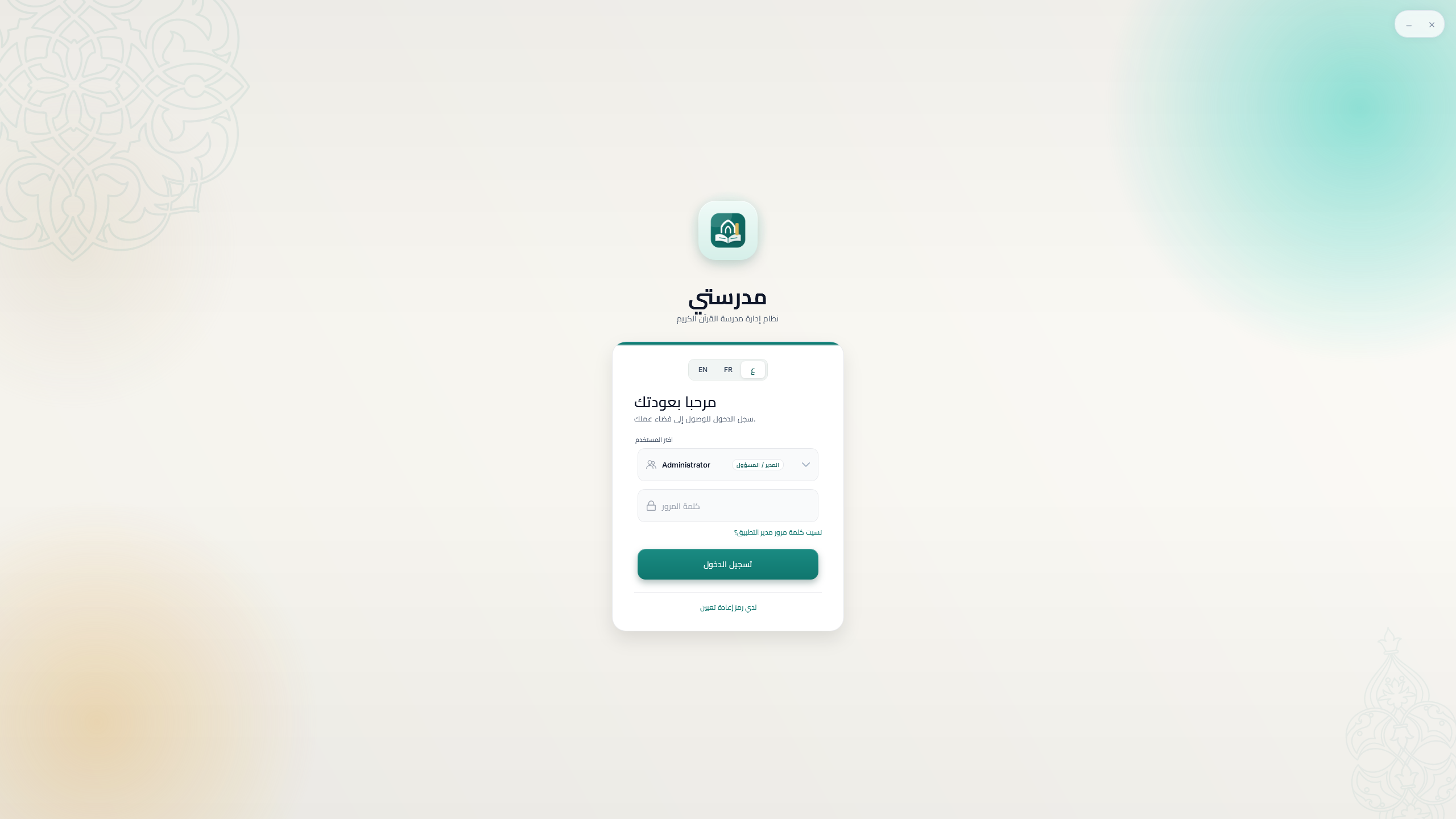
Choose administrator recovery from the Madrasati login screen. Request the one-time reset code, retrieve it from the registered email, and complete the reset inside the app.
I forgot the Fikrova account password.+
Use Forgot password on the Fikrova portal. This is separate from the local Madrasati user accounts.
A required update will not install.+
Keep the downloaded file, create a backup, restart Windows, retry once, then export a support package if it still fails. Do not remove the database folder.
How often should I back up?+
At least weekly and before any major change. Busy schools should back up daily. Keep copies on more than one physical location and test restoration periodically.
Need personal assistance?
Use the Contact support page inside Madrasati to copy your support identity and export a diagnostic package before contacting Fikrova.

 Madrasati